Rollups allow users to control the data that gets added to a dimension attribute, similar to Data Validation in Excel. In Solver, rollups have practical uses that help ensure data integrity and standardization while simplifying reporting. A couple of examples of what rollups can do include
- Ensure the same text is used for all entries of a dimension.
- Quickly update dimension data and have it flow through to all reports.
- Advance on “smart” coding to make it easier to extract specific data from your smart coding.
This feature enables data control for reporting improvements and maintenance. For customers with multiple data contributors, minor variations in data entry can cause inconsistencies and potential reporting issues. Rollups mitigate these issues by prioritizing data integrity, ensuring that information remains consistent and reliable. By enabling standardized code descriptions with pre-determined options, the system enforces specific labels, resulting in uniform, trustworthy data regardless of input variations.
Configure a Rollup
Rollups are created on a supported target dimension of the user’s choosing. For this example, the Account dimension is being used. To create a rollup on the account dimension:
- Access the Dimension
- Navigate to the Data Warehouse.
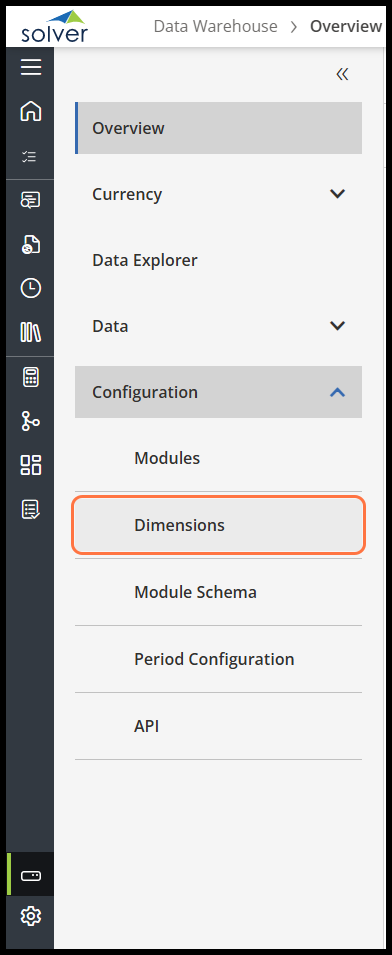
- Open the Configuration dropdown and select Dimensions.
- Select the dimension you want to configure. In this case, Account.
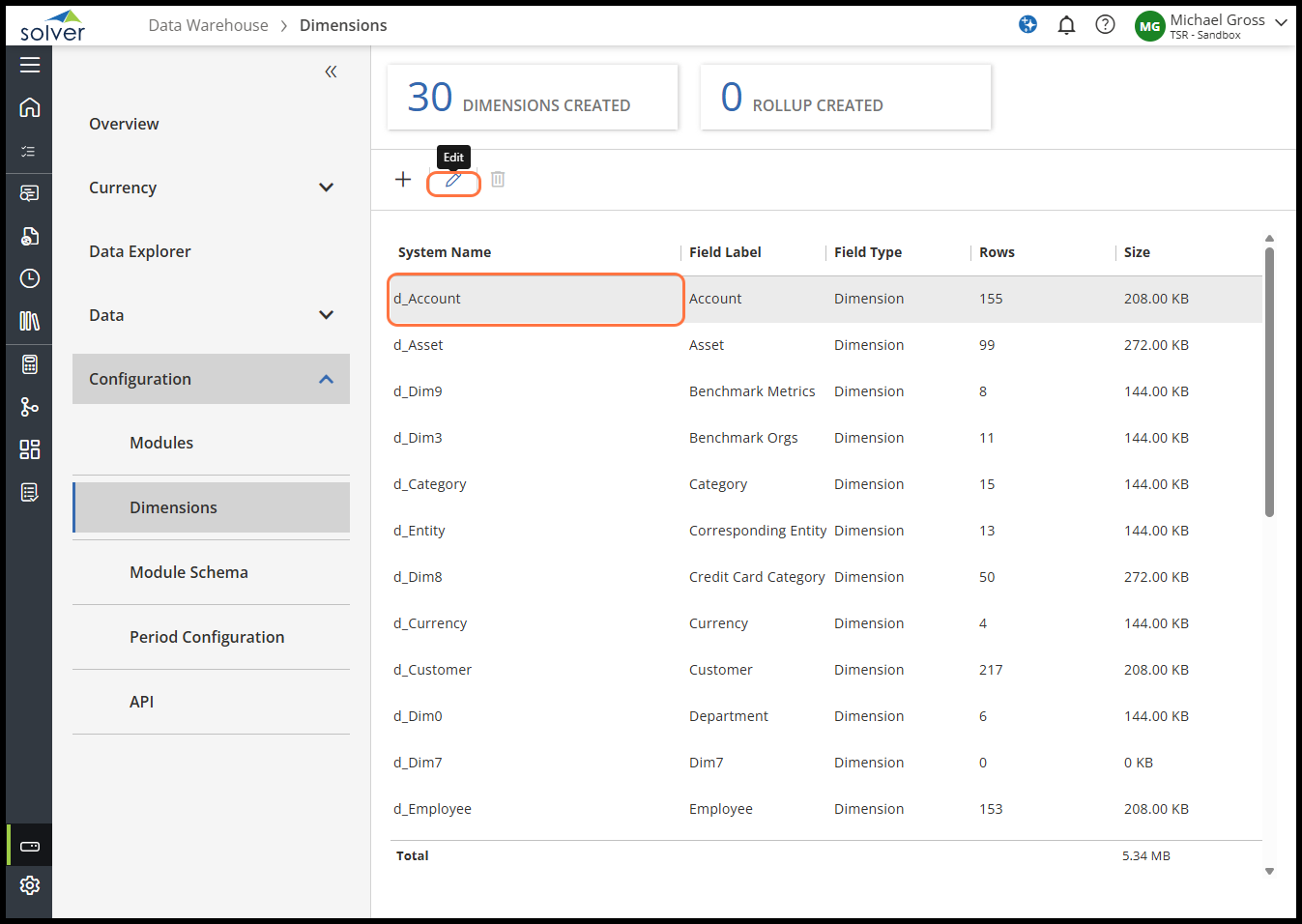
- Once selected, click the pencil icon from the toolbar to edit the Account Dimension.
- Add a Rollup Attribute
- Scroll to the Rollups section at the bottom of the Dimension Details page.
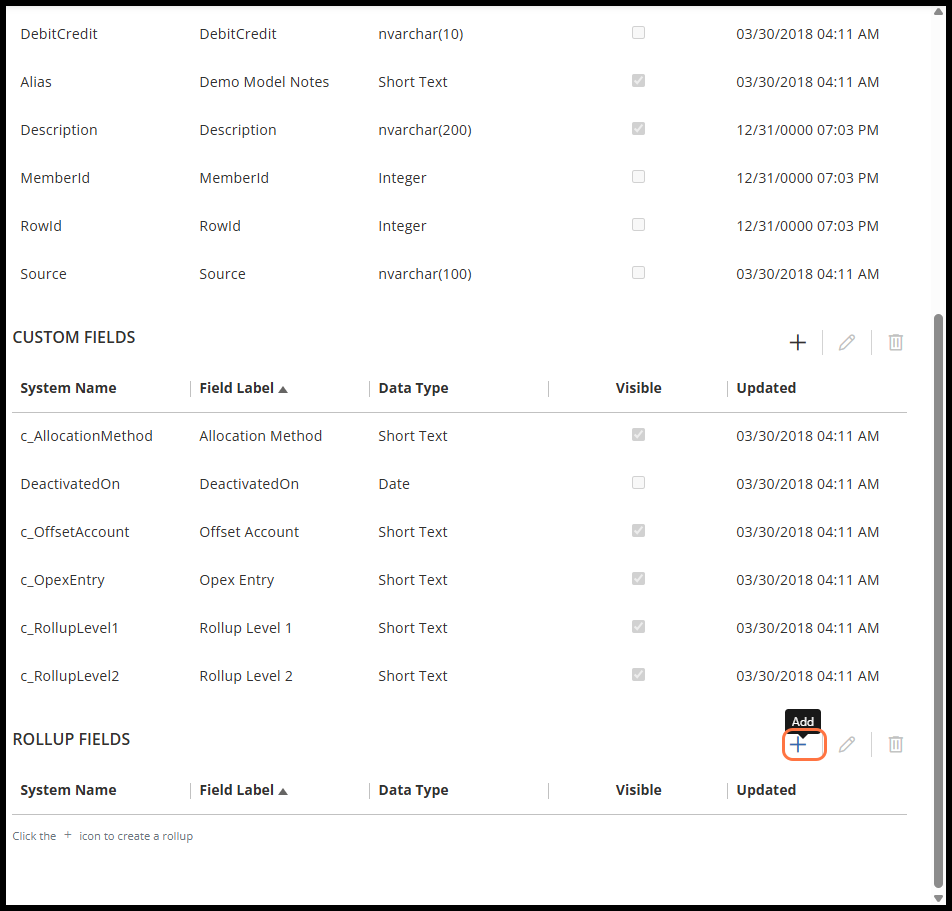
- Click the + (Add) button to create a new rollup attribute.
- In the pop-up window, enter a unique name in the Field Label field.
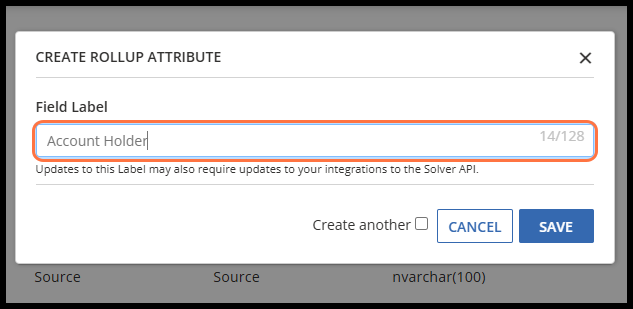
- – Note: The name must not match any system-defined or existing custom Dimensions.
- – (Optional) To create multiple rollups:
- – Check Create Another, then click Save and repeat.
- Scroll to the Rollups section at the bottom of the Dimension Details page.
- Define Rollup Values
- Return to the Overview page.
- Select the Rollups tab (next to Dimensions).
- Choose the dimension you just updated.
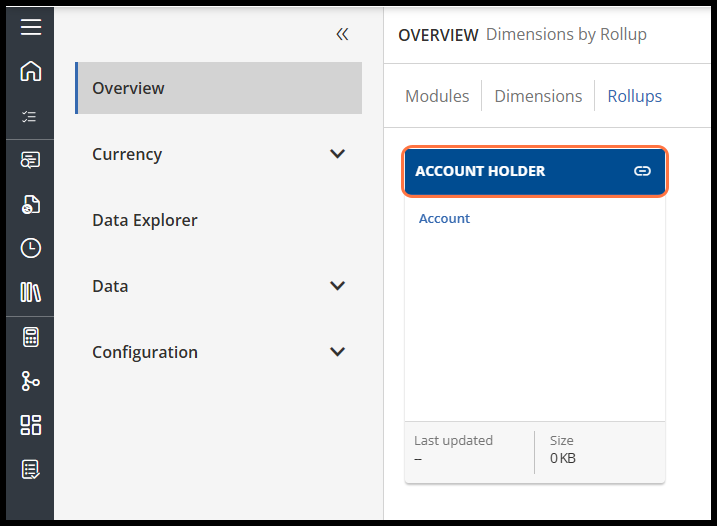
- In the rollup grid, enter a value in the Code column and click outside the cell to save.
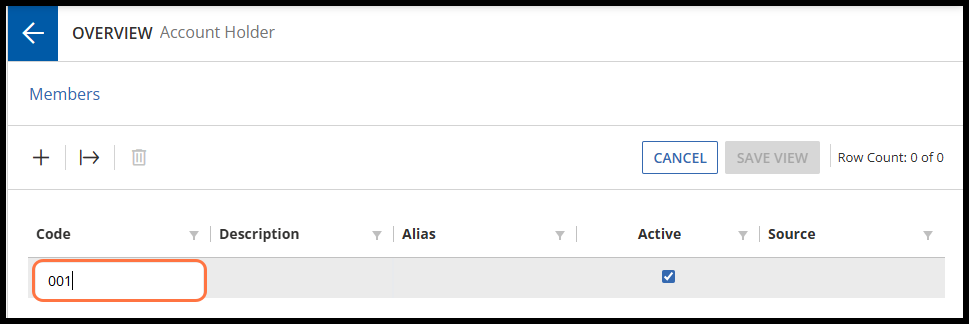
- Enter a corresponding Description and click outside the cell to save.
- After creating the rollup dimension, populate the data on the rollup dimension. You can populate this dimension via an integration or by inputting it in the Data Warehouse Menu.
Apply the Rollup
- After populating the data on the rollup dimension, users must update the Parent dimension. In this example, that would be the Account dimensions.
- On the Account dimension, scroll to the rollup column.
- Click the cell to open the dropdown menu containing the value options created by the rollup.
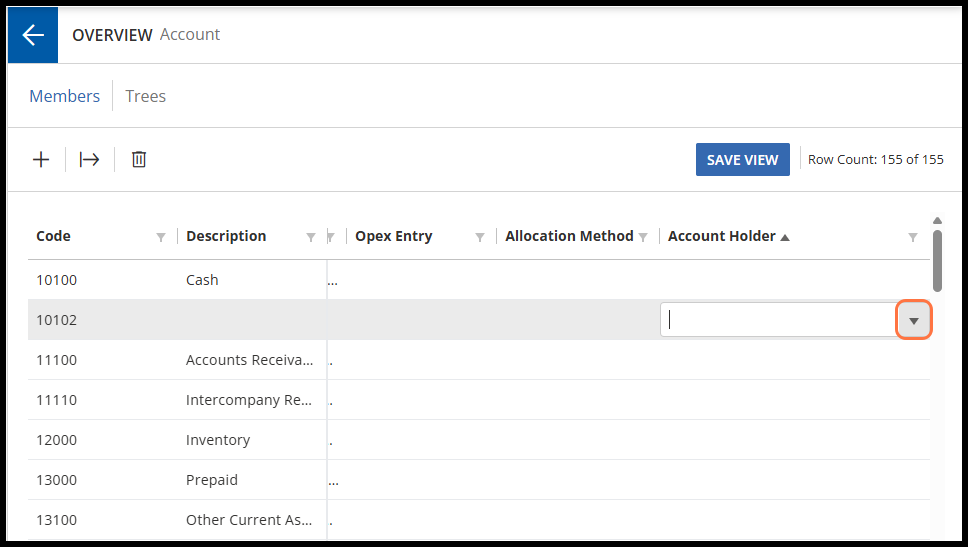
- Select the desired code from the dropdown menu. This will be displayed as the description once the user clicks out of the cell.
- Repeat for all relevant data points.
- Only data that exists on the rollup dimension can be selected.
New data can now be tagged using the rollup after each job.
FAQs
- Which Dimensions are rollups supported on?
- All dimensions except Period and Stargate
- Are rollups supported on modules?
- No
- Do Rollup dimensions support rollups?
- No
- Do rollups support trees?
- No
- Do Rollups support attributes?
- Yes, a rollup dimension is just like any other dimension and can support attributes (UDF###)
- Why can I not define the data type for a rollup?
- From a database design perspective, a rollup is an integer database because it references a different table. For these reasons, users are not required to define the data type.
- Is there a limit to the number of Rollups on a dimension?
- You can only create 999 rollups. Additionally, each dimension can have up to 1024 attributes, including rollups.