This article details how to set up and change your Multi-Factor Authentication with Solver. Solver Cloud and Private Host support multiple user login authentication methods. These methods include:
- Solver’s Multi-Factor Authentication
- Microsoft Entra ID
- As of October 2023, Microsoft has renamed Azure Active Directory (AAD) to Microsoft Entra ID.
- Okta Authentication
NOTE: Cloud and Private Host customers using SAML can only use Solver authentication at this time.
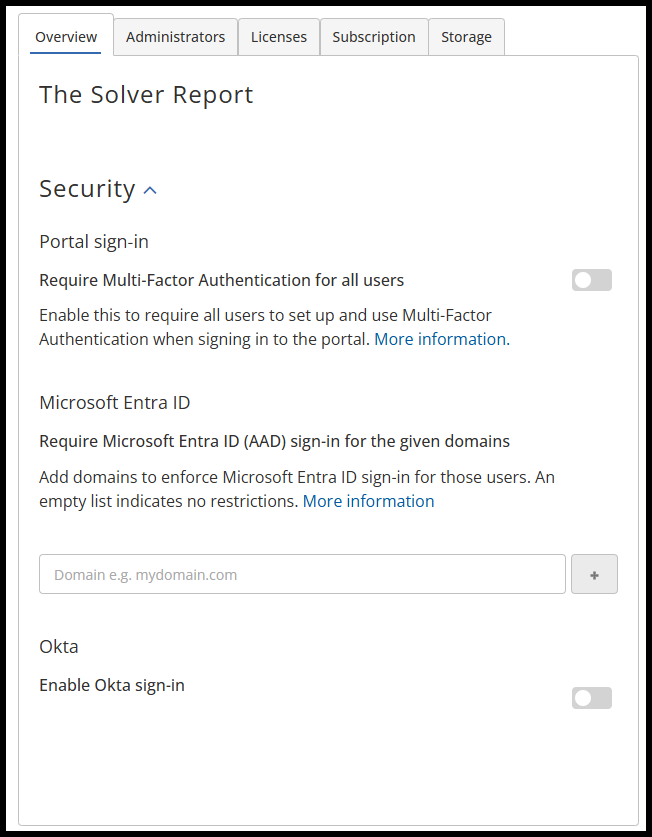
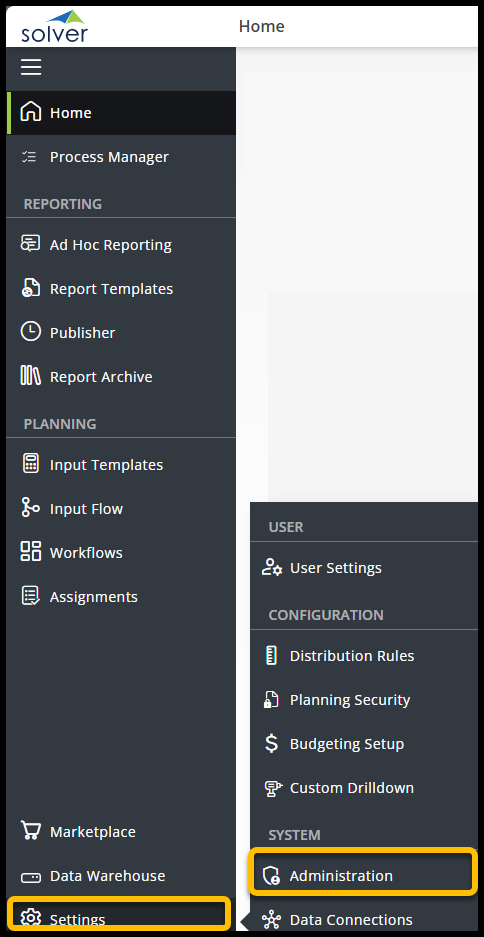
All login settings are available to Customer Administrators in the Settings menu under Administration and within the Overview Tab.
Solver’s Multi-Factor Authentication
Customer Admins may choose to enable Solver’s in-app Multi-Factor-Authentication (MFA). Solver’s MFA uses the Microsoft Authenticator app, which must be installed on the end user’s phone. For instructions on this process, see this article.
Geo-blocking or IP Whitelisting with the Authenticator app for Solver is currently unavailable.
To enable Solver’s Multi-Factor Authentication,
- Navigate to the Overview tab under Administration.
- Select a tenant to apply the MFA requirement to.
- Click the slider next to Require Multi-Factor Authentication for all users.
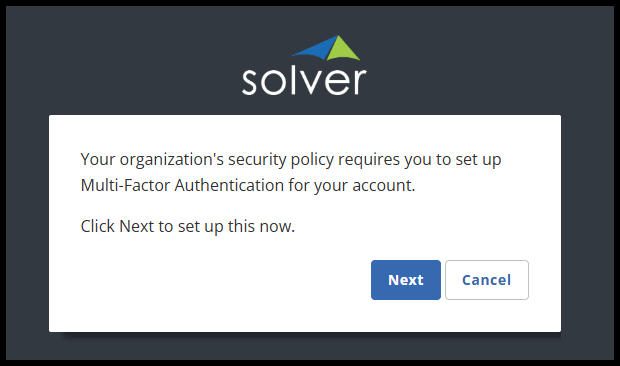
Once enabled, the next time any user logs in to Solver with their username and password, instead of going to Solver, they will be prompted to set up MFA for their account.
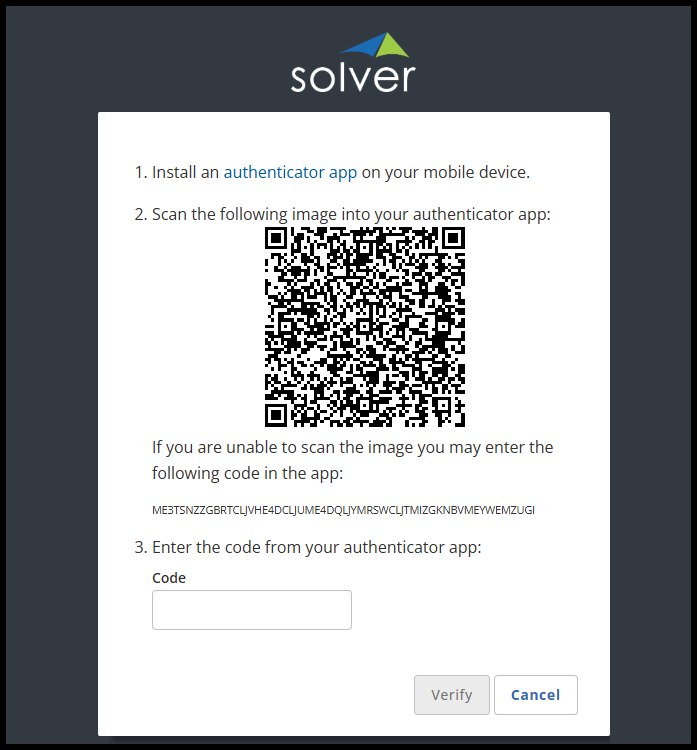
They will then be given a QR code to scan using their phone’s Microsoft Authenticator app. This will provide users with a code to verify the connection between the app and Solver.
Solver’s MFA can be disabled at any time, but if re-enabled, users must complete the process again to log in to Solver.
Microsoft Entra ID
Microsoft Entra ID integrates into your organization’s Entra ID Settings to support the following:
- Authenticating against the user’s Microsoft Entra ID password.
- Multi-factor authentication (MFA) is enabled within the organization’s Microsoft Entra ID.
- SSO, if enabled within the organization’s Microsoft Entra ID.
Note: Solver Support does not assist with configuring these features for your organization’s Microsoft Entra ID.
Requirements
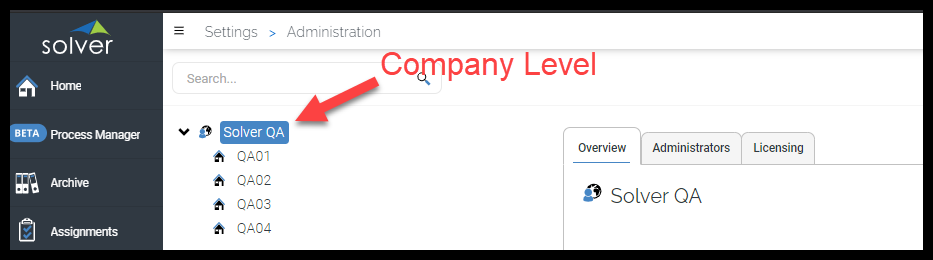
Solver Cloud requires at least one non-Microsoft Entra ID-authenticated account in the application. These users are identified by being assigned a Company Admin (Settings > Administration)
Setup
Users can log in with either Microsoft Entra ID credentials or Solver Authentication. When users navigate to the Solver site, they can enter the password they used to set up their account or click the Sign In with Microsoft icon to sign in with their Microsoft Entra ID credentials.
For organizations that wish to enforce Microsoft Entra ID authentication only, please follow these steps:
- As a company admin, log in to Solver.
- Navigate to Settings > Administration and click Overview at the Company level.
- In Microsoft Entra ID, enter your organization’s Microsoft Entra. Add your verified Microsoft Entra domain (for example: company.com) and click the + icon. Your Microsoft Entra ID will appear in the list below. Add multiple Microsoft Entra ID domains if applicable.
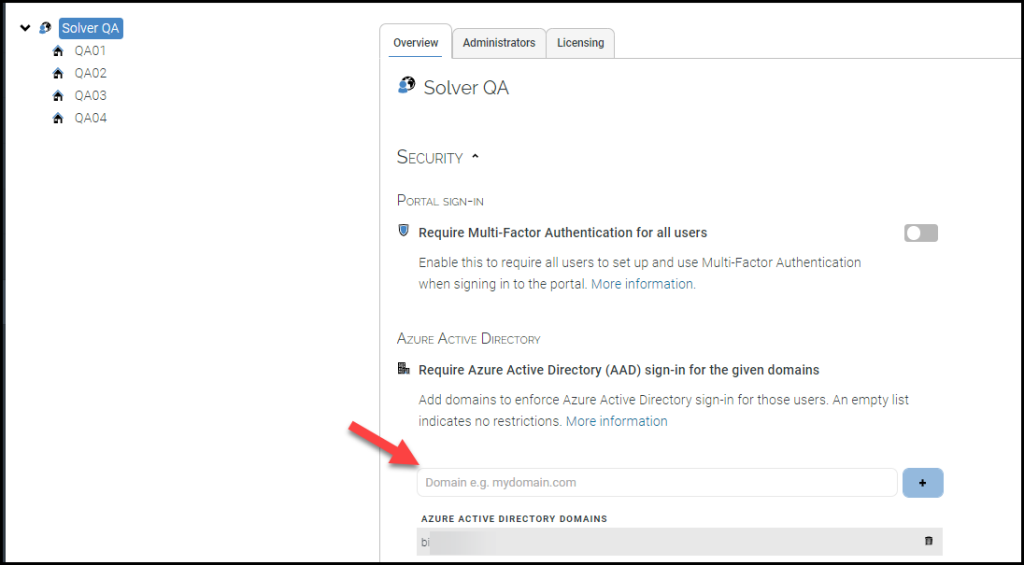
By adding this domain, you have now restricted Solver to users who can authenticate against the provided domain(s), except those assigned to the Company Administrators group.
NOTE: Users in the same Microsoft Entra ID domain who are added after enabling the Microsoft Entra ID domain are locked to using Microsoft Entra ID authentication only. Administrators can still add users who are not part of the Microsoft Entra ID domain.
Adding Users
When adding users with Microsoft Entra ID authentication enforced, users will register against their Microsoft Entra Credentials.
- Add the user(s) to the tenant that they need access to.
- Upon adding the user, they will receive an email invite.
- Upon clicking the link in the email invite, users will click the Register button to sign in with their Microsoft Entra credentials and will have successfully created their account in Solver.
As a reminder, email links become invalid after 30 minutes.
In addition to the above permissions, for Solver to connect to BC, the first Solver login to your Business Central environment will require approval (consent) for communication between Solver and your BC tenant. This approval grants Solver permission to validate your status as an active Business Central user.
Each company implements different user consent policies, but typically, this requires Microsoft Entra ID Admin approval. Reference this Microsoft article for more details.
Conditional Access Policies
Microsoft Entra ID Administrators could have additional conditional access policies that can impact integrations within Solver. These policies can revoke access within Solver’s integration engine. Please consult with your Microsoft Entra ID administrator to review any conditional access policies. Solver does not have visibility into which policies your organization has set, but the following policies have been known to affect setup and integrations.
- Location-Based Policies
- User Risk Policies
- Sign-In Risk Policies
Configure user consent in the Microsoft Entra ID admin center
To configure user consent settings through the Microsoft Entra admin center:
- Sign in to the Microsoft Entra ID admin center as a Global Administrator.
- Browse to Identity > Applications > Enterprise apps > Consent and permissions > User consent settings.
- Under User consent for applications, select which consent setting you want to configure for all users.
- Select Save to save your settings.
For more information, visit Microsoft’s Entra ID documentation.
Solver and Azure Multi-Factor Authentication and Reset
Solver supports organizations that have enabled Multi-Factor Authentication (MFA) in Microsoft Entra ID. For Microsoft Entra ID-authenticated users, the MFA setting configured in Microsoft Entra ID is the only setting that is “read” for MFA. With this in mind, the application will act in the following way:
| MFA on Microsoft Entra ID Setting | Solver MFA Setting | User Experience |
|---|---|---|
| On | On | MFA through Microsoft Entra ID enabled |
| On | Off | No MFA Prompt |
| Off | On | No MFA Prompt |
| Off | Off | No MFA Prompt |
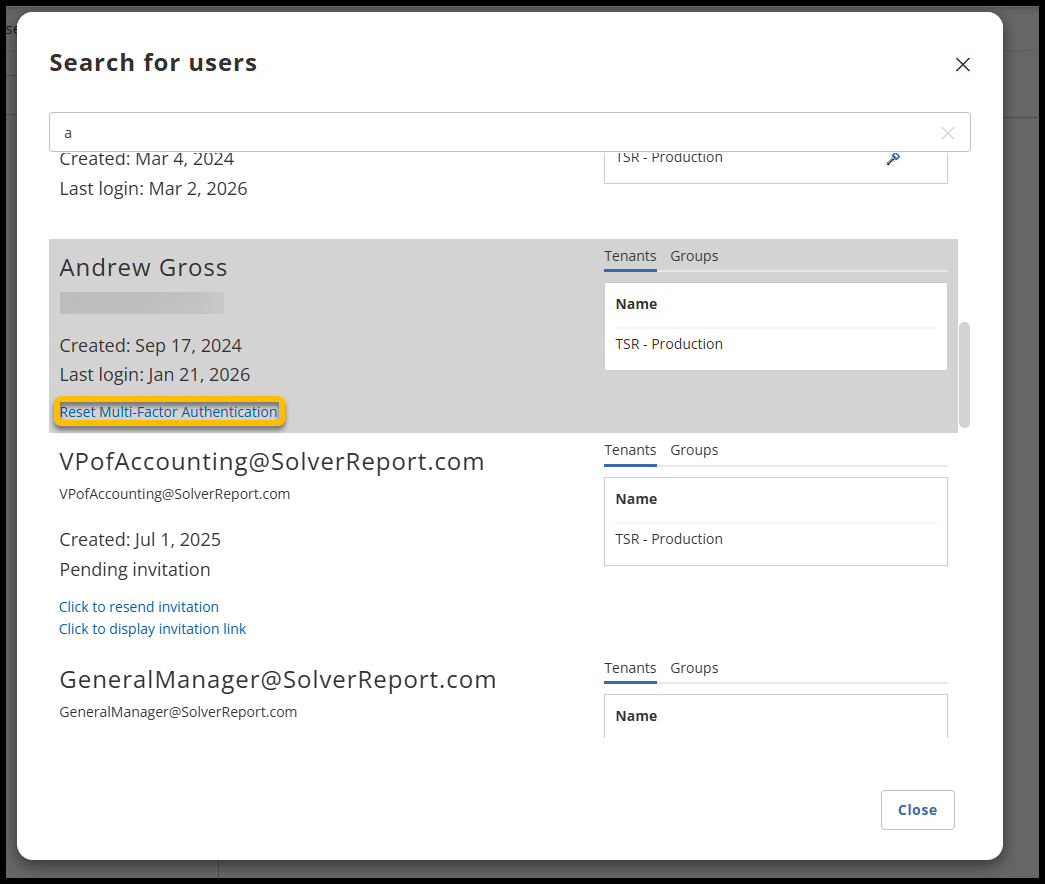
Resetting multi-factor authentication is only available for one user at a time. For a user who needs to reset their MFA, they may do so by following these steps:
- Log in to Solver as a Customer administrator.
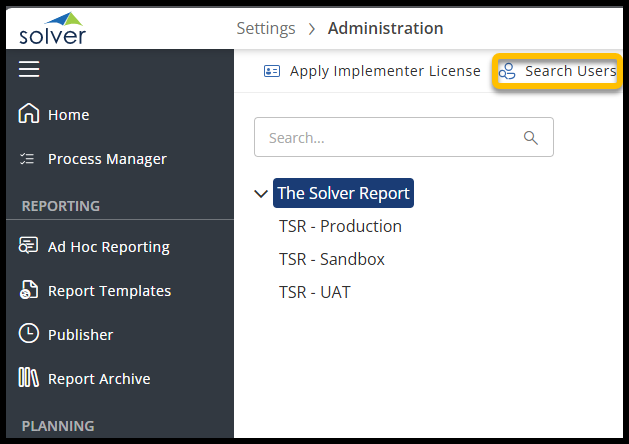
- Click Settings > Administration.
- Select Search Users from the administration screen toolbar.
- Search for the user by email or username, and if that user has enabled MFA, a link to reset the MFA setup will be sent to their email.
With Entra ID, a password reset, especially one invoked by your Microsoft administrator, can take 15 minutes to update and take effect. You may find that your new password does not work immediately after changing it in Solver Cloud for up to 15 minutes.