Solver’s Microsoft Fabric connector enables customers to import any data hosted in Fabric into Solver.
Pre-Install Requirements and Technologies
The Fabric Connector has the following requirements:
- Users must have a Solver Cloud and the applicable Microsoft Fabric licenses.
- Users must allow pop-ups in your browser. This is required because during the integration configuration process, you must sign in via a Microsoft Entra ID login pop-up.
- During the configuration in Solver Cloud, an active Microsoft Entra ID account with access to the Fabric Instance is required to log in and connect Solver to your organization Fabric tenant.
- Depending on your organization’s policies and access controls within Azure, users might also need an Azure administrator who can approve (“Consent”) access to the data. This is typically only needed once.
Connector Set Up
To create an integration:
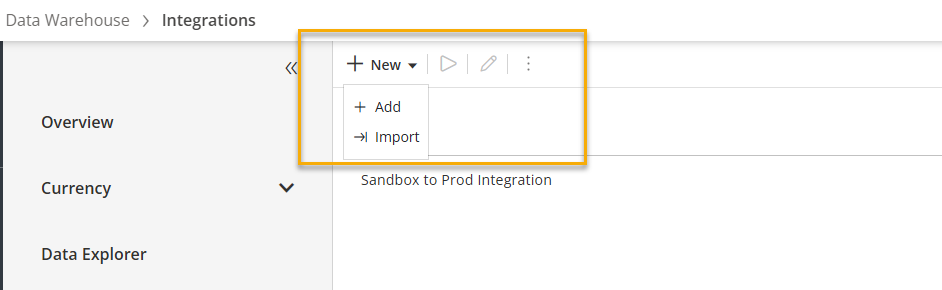
- Navigate to Data Warehouse > Data > Integrations
- Select the New > Add button in the action bar to load the Connector Marketplace.
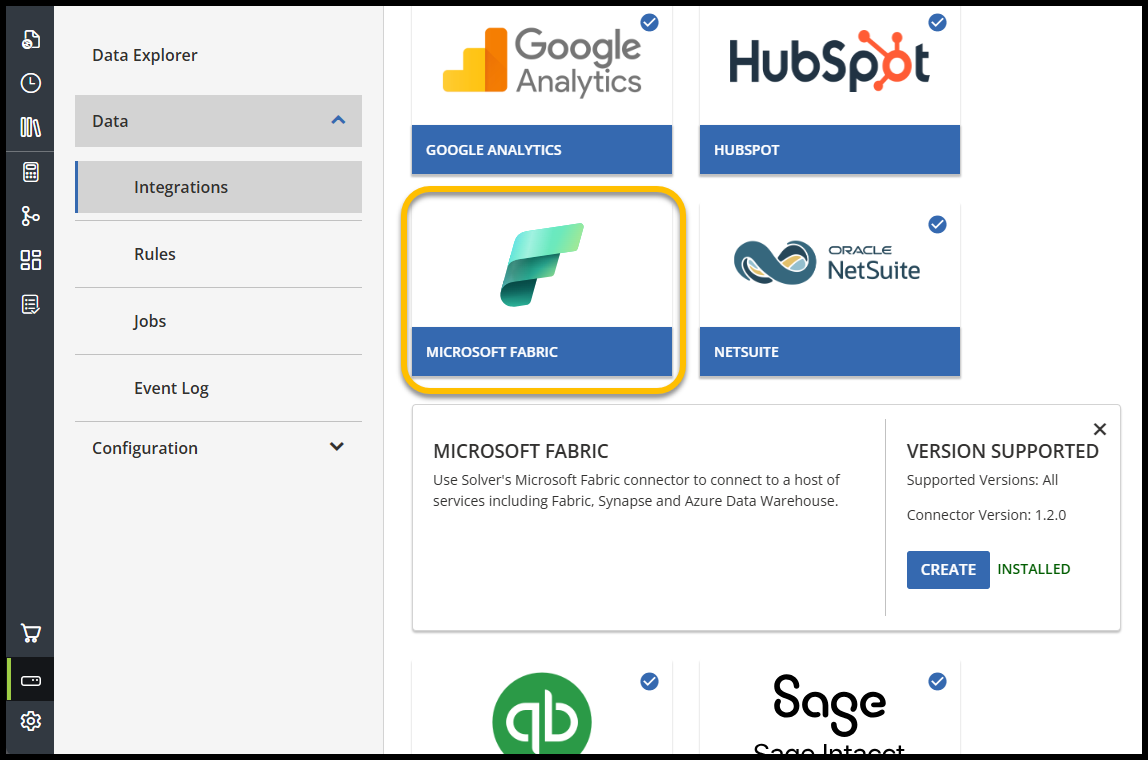
- Choose the Fabric connector and click Create.
- Users will be prompted to provide necessary authentication information.
- Authentication Type: Defaults to Entra Id.
- Server Address: Provide the Fabric Server/Endpoint URL
- Database Name: Provide the name of the database/resource to be connected to Solver.
- Advanced Options: Additional parameters for connecting how Solver will connect to the Fabric instance.
- Timeout settings: This is the amount of time that Solver will attempt to request data from the selected enpoint. The default is set to 10 miutes but can be extended to any value.
- 10 minutes is a safe amount of time. If it takes longer than 10 minutes to retrieve data, users may want to review the underlying queries populating data in Fabric.
- Larger datasets will naturally take more time to return results; so 10 minutes can be expected in some scenarios.
- Solver enforces a 30 second, hardcoded, timeout setting for establishing connection and authenticating to your Fabric instance. This is an internal setting that cannot be changes.
- 10 minutes is a safe amount of time. If it takes longer than 10 minutes to retrieve data, users may want to review the underlying queries populating data in Fabric.
- Encryption Settings:
- Trust Server Certificate:
- Host Name Certificate:
- Timeout settings: This is the amount of time that Solver will attempt to request data from the selected enpoint. The default is set to 10 miutes but can be extended to any value.
- This connector supports various connections, tailored to the user’s specific needs. Please contact your system administrator to obtain the necessary authentication and permission data for your chosen Microsoft system.
- Once you have provided the above information, click Authenticate.
- As mentioned above, assuming popups are enabled, a Microsoft Login popup should appear. Type in your corporate email and password, or service account information if that is the preferred authentication account.
- For accounts that have MFA enabled, a one time MFA code will be requested. Solver’s OAuth process does not require that an MFA code is provided again unless the authenticated account is disabled and re-enabled from within your organization’s Azure Admin center.
- Assuming that the provided information is correct, users have now successfully established a connection between Solver and your Fabric instance. Follow these steps for creating an integration.
Assuming the the provided information is correct, users have now successfully established a connection between Solver and your organizations Fabric instance. Follow these steps for creation an integration.
Limitations
Currently, some known limitations when using this connector are:
- Users cannot make changes to the URL provided for authentication if it has been modified. The integration must be recreated to avoid any data sync issues.
- The current advanced options include legacy customizations that are not typically available for Fabric & Azure data sources.
- At this time, only the following connections are available: Azure, Lakehouse, Azure Warehouse, SQL Analytics, Synapse, and SQL Server.