Content Manager, introduced to Solver with the June 2026 update, enables a user(s) with the appropriate permission to view all content in Solver and reassign it to a selected user. With this initial release of Content Manager, the following items in Solver are viewable from within Content Manager.
- Report Templates & Categories
- Input Templates & Categories
Permissions to Content Manager
Content Manager is available to users with the following rules
- Customer Admins will have access to Content Manager
- Users or roles who have been granted “Can administrate ownership and content” permissions.
Reference this article for more information on how to assign a permission.
Accessing Content Manager
Once a user has been granted “Can administrate ownership and content” permissions
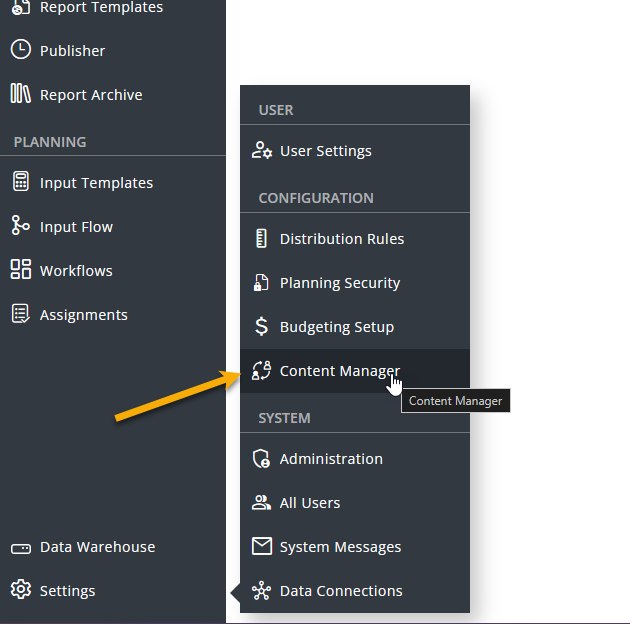
- Navigate to Settings > Content Manager
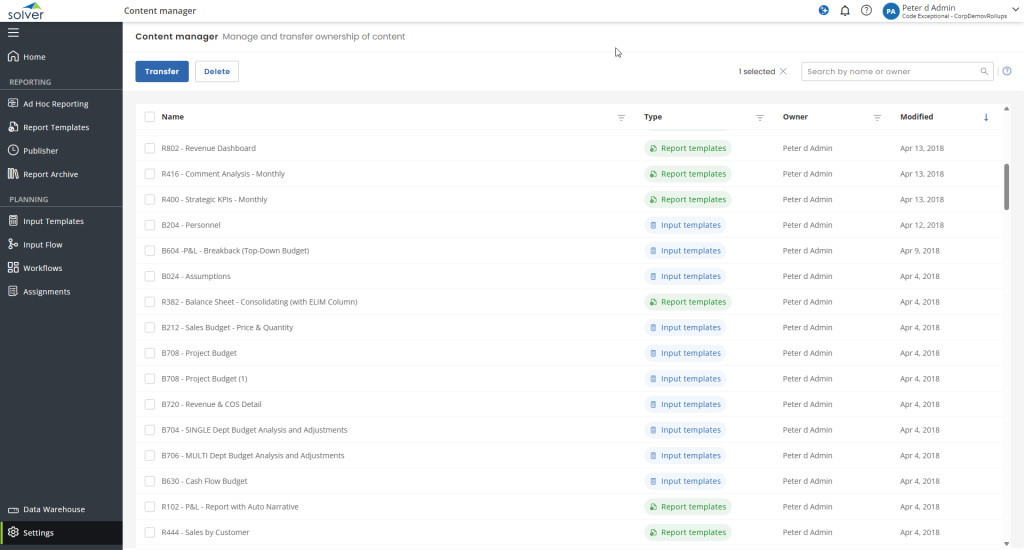
- A listing of all Reports, Input Templates and categories will appear. The follwoing details are shown:
- Checkbox: use this checkbox to select all items
- Name: The report name
- Type: The content type (ie: Report Template, Input Template, etc)
- Owner: Owner of the report
- Modified: Last time the item was updated.
Click on the column header to sort ascending or descending. Name, Type and Owner columns are filterable, while users can only sort on the Modified column.
Transferring an Item(s)
Similar to the Transfer Ownership feature, Content Manager enables a user to transfer the ownership of an item(s) to another user. Where Transfer Ownership will transfer all items of a user to another user with minimal context to what is being transferred, using the Transfer feature within Content Manager enables you to select specific file(s) to be transferred
| Feature | Transfer Ownership | Content Manager |
|---|---|---|
| View all items1 of a tenant | ✔ | |
| Transfer a single item1 of a user | ✔ | |
| Transfer all items of a user | ✔ | |
| See items of a user | ✔ |
To transfer an item
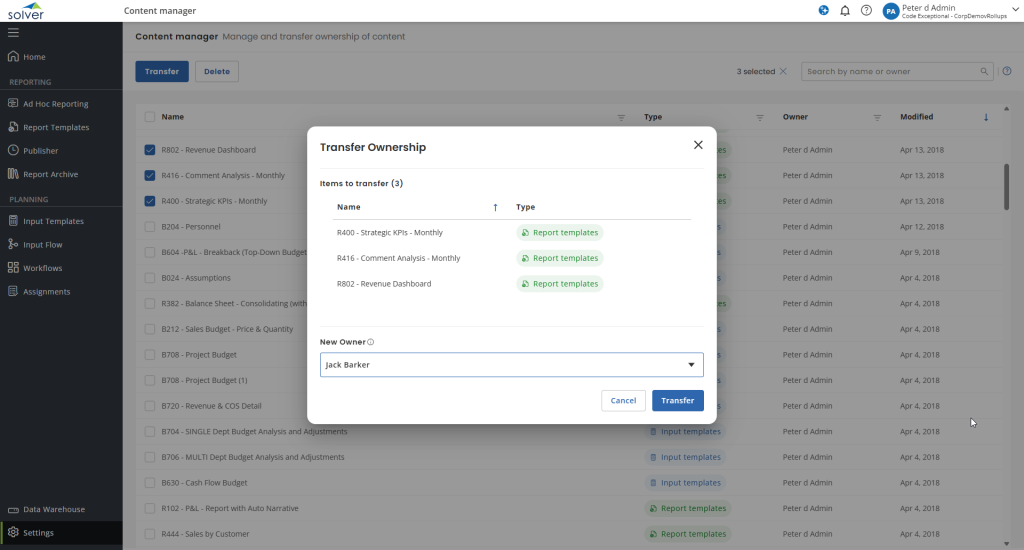
- Select the item(s) that you want to transfer.
- Click Transfer in the upper left hand corner
- A popup will appear displaying the items that have been selected.
- In the New Owner dropdown, choose the user that should be the owner of the selected item.
- Click Transfer.
- Choose Cancel to exit the process and not transfer the items.
Once you click Transfer, you cannot undo this action. However, if you have made a mistake and accidentally transferred an item, simply use Content Manager again to transfer the item back to the original user.